
Setup Development Environment
Choosing an Operating System for the Development PC
Most of the RIOT OS developers are using Linux on their development PCs, so you can expect the most streamlined experience here. Generally, most Linux distributions are supported.
If you are new to Linux, we recommend using Ubuntu, as it is the most widely used distribution and has the most extensive documentation and community support.
Windows is supported through Windows Subsystem for Linux (WSL). The experience is not as streamlined as on Linux, but it is still possible to develop with RIOT.
Native development on macOS machines is not officially supported.
What works well is using Linux in a virtual machine, but at much lower performance than running Linux natively.
We also offer Docker images that make it a bit easier to develop on macOS.
Installing the required software packages
Depending on the operation distribution you are using, the installation of the required software packages may vary.
sudo apt install make gcc-multilib python3-serial wget unzip git openocd gdb-multiarch esptool podman-docker clangd clang sudo pacman -S make gcc-multilib python-pyserial wget unzip git openocd gdb esptool podman-docker clang"}- This will show something like this depending on your distribution:
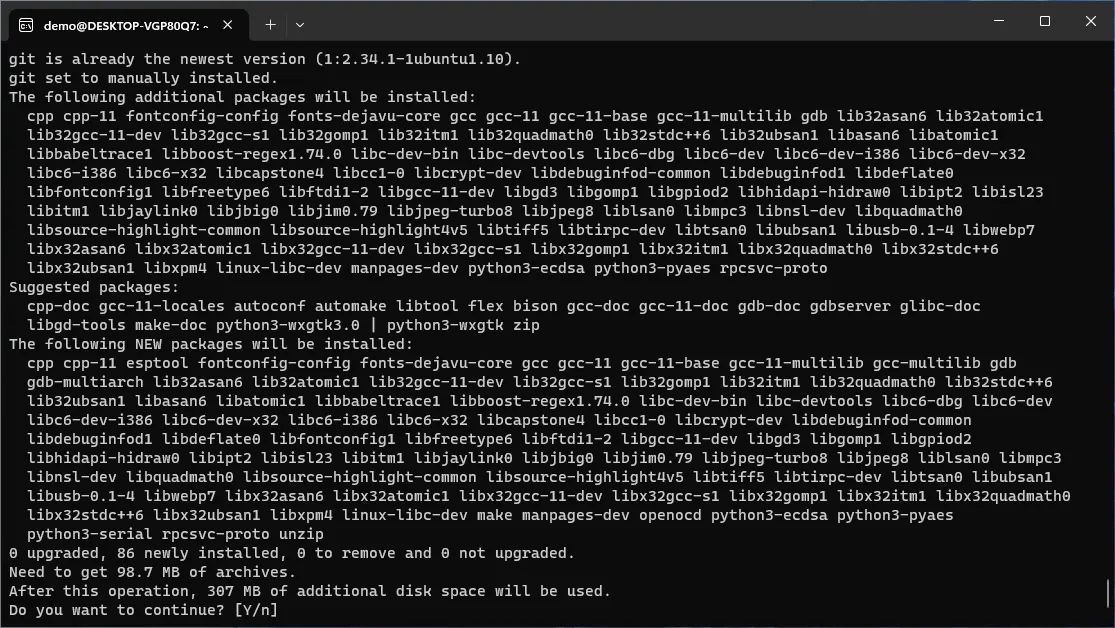
- Confirm the installation by hitting the return-key
- The installation process will take some time
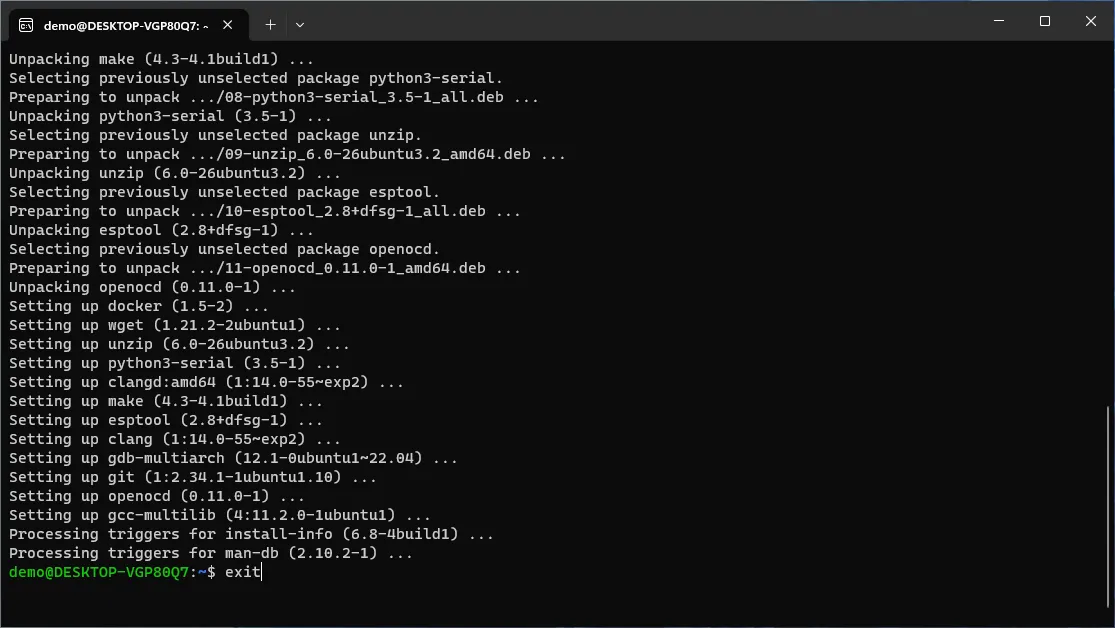
- Eventually the output will look like below (except for the
exit)
Cloning the RIOT Repository and First Steps in the Terminal
- Open the terminal.
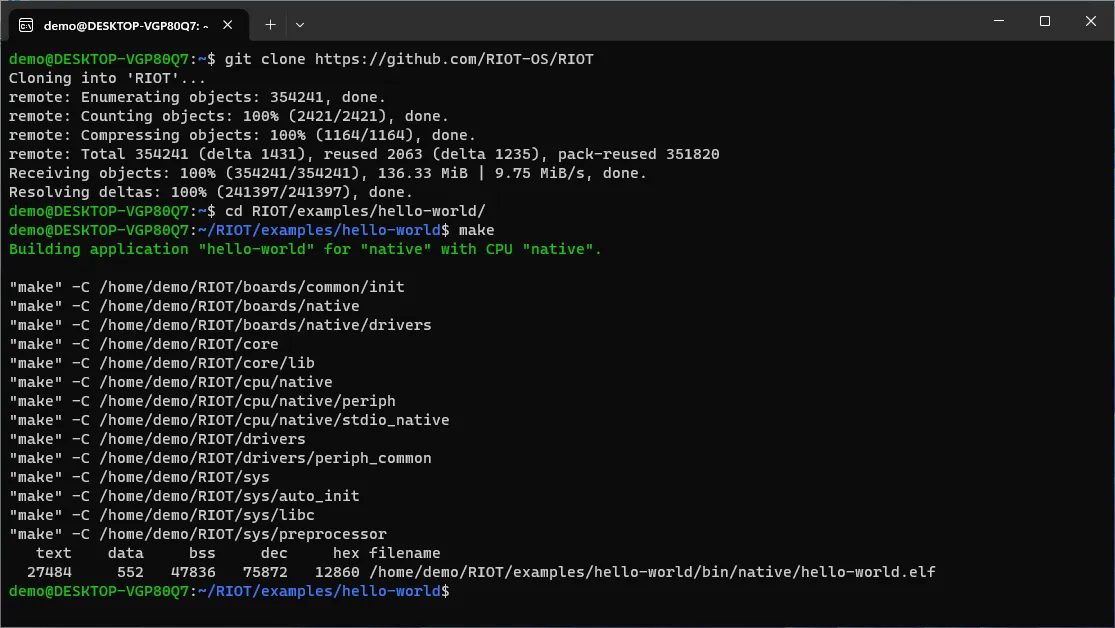
- Type
git clone https://github.com/RIOT-OS/RIOTand confirm with the return-key - This may take some time. Eventually, it will print
done.when it completed - Type
cd RIOT/examples/hello-worldand confirm with the return-key to enter the folderhello-worldexample app in the RIOT repo - Type
makeand confirm with the return key to build the app for the boardnative
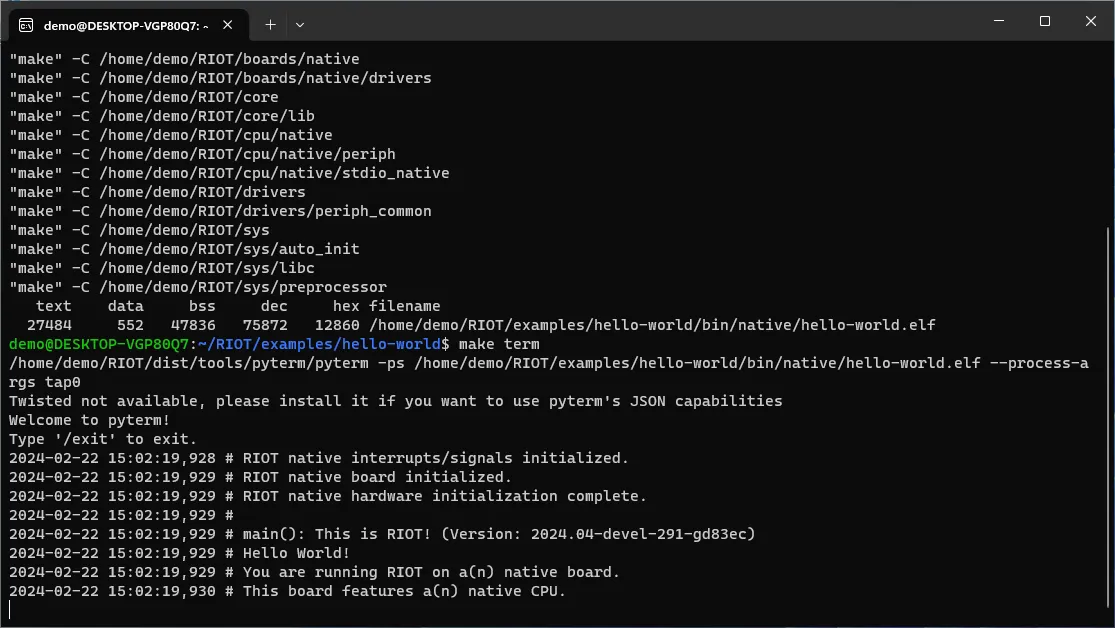
- Now run the application by executing
make term - The output should look similar to the screenshot above
- You can close the terminal by:
- Press and hold the
Ctrl-key - With the
Ctrl-key still held, press theC-key - Release both keys
- Press and hold the
Using VS Code for Development
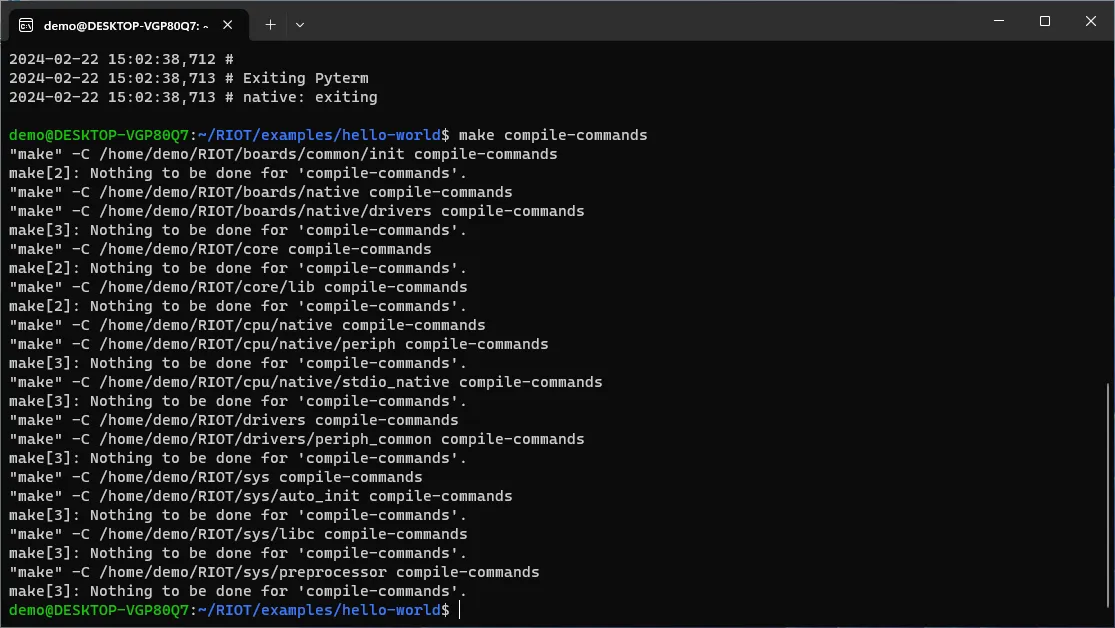
- If not already open, open the terminal
- Confirm that the terminal is pointed to the folder
~/RIOT/examples/hello-world- The blue part left of the prompt (the
$sign in the terminal) shows the current working directory for the terminal - If the blue string is not
~/RIOT/examples/hello-world, typecd ~/RIOT/examples/hello-worldto enter that path
- The blue part left of the prompt (the
- Inside
~/RIOT/examples/hello-worldrun the commandmake compile-commands - The output should look like above
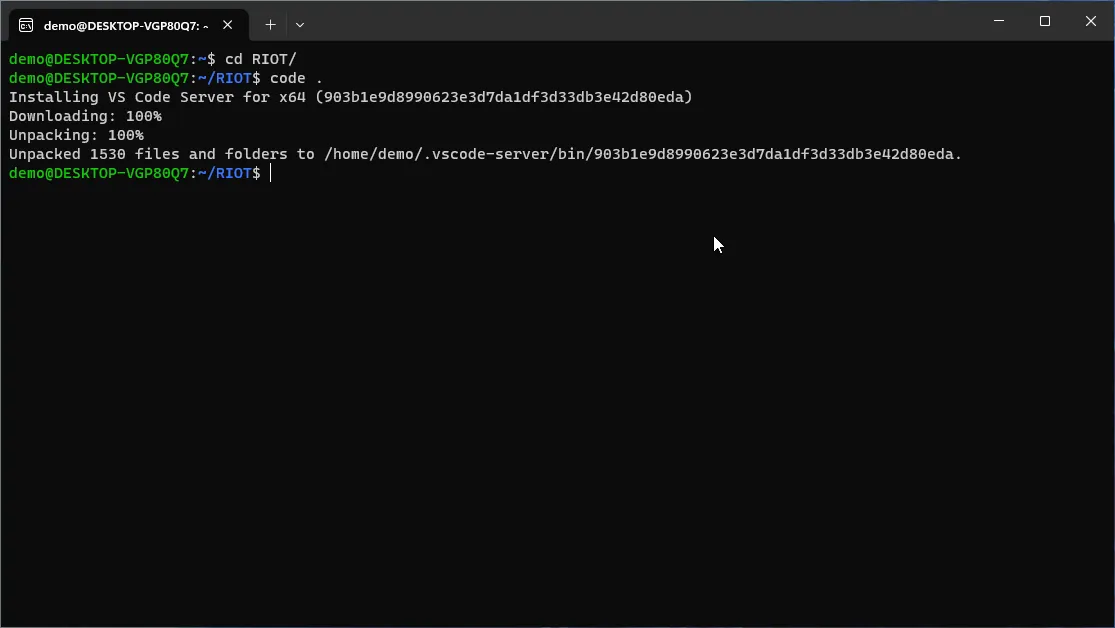
- Navigate back to
~/RIOTusing the commandcd ~/RIOT - run
code .to launch VS Code- This will take a bit longer on the first launch
- Eventually, a VS Code Window should pop up that looks like this:
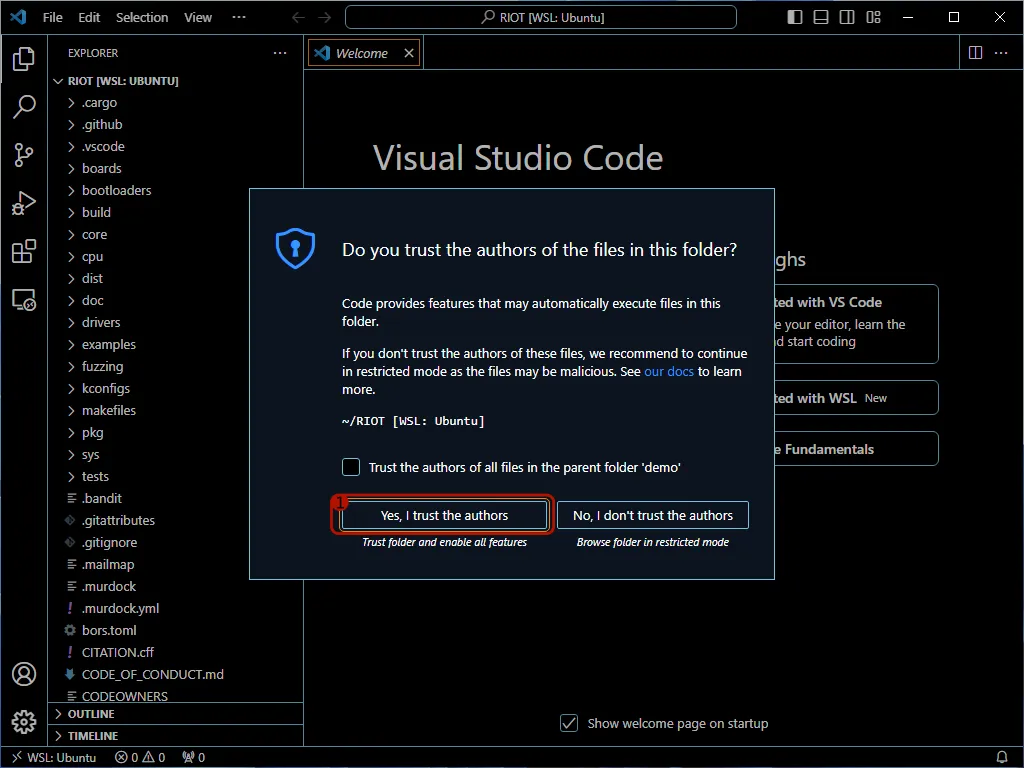
- Click on “Yes, I trust the authors”
- Now, use the tree view in the left and open the
examplesfolder - Open the
hello-worldfolder inside theexamplesfolder - Open the
main.cfile in thehello-worldfolder withinexamples - The file should open and look like this:
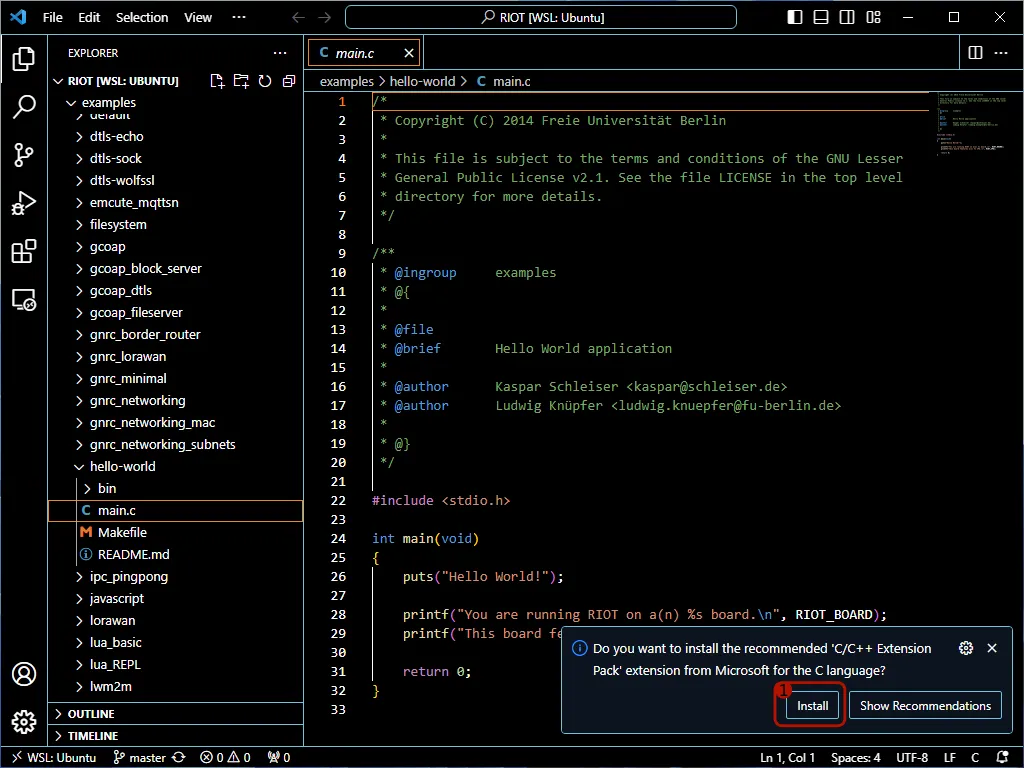
- Click on the “Install” button when prompted to install the C/C++ Extension.
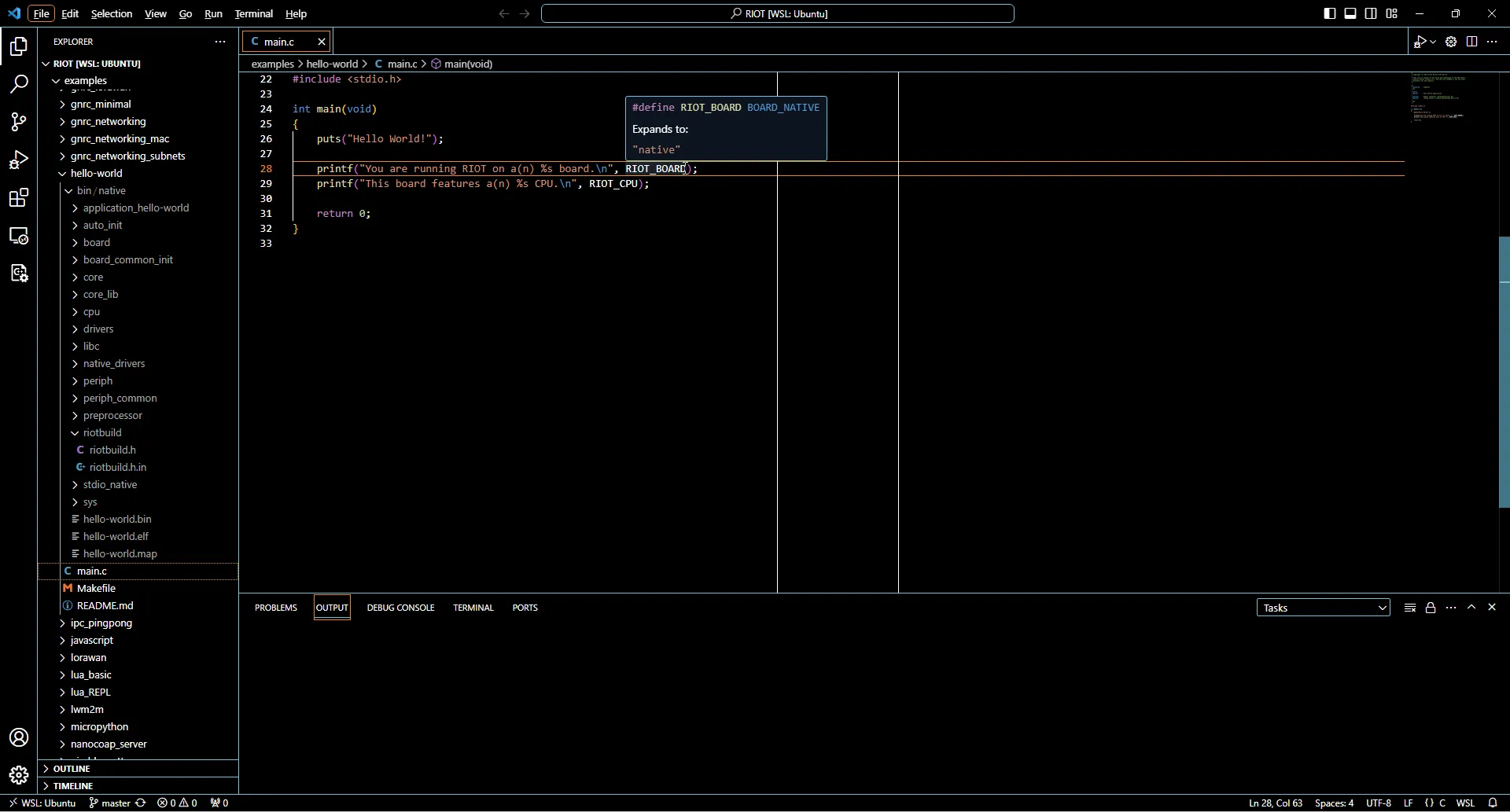
- Confirm that when hovering over
RIOT_BOARDin the source code, IntelliSense shows that it expands to"native".
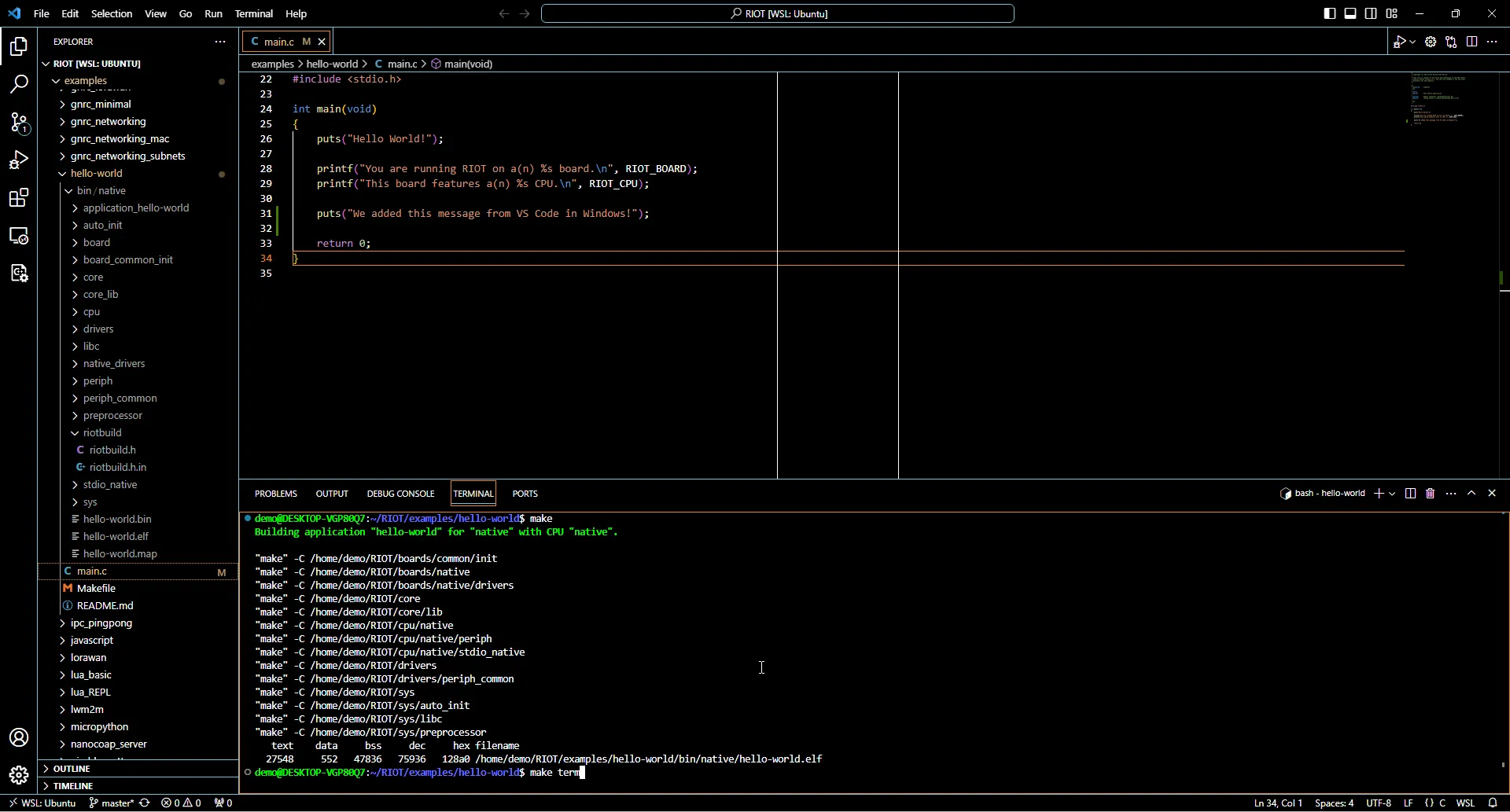
- Extend the message to be printed, e.g. by adding a
puts("...");statement in the source code - Save the modified source code (e.g.
Ctrl+S) - Open the integrated terminal by clicking on the terminal tab at the bottom
- Navigate to
~/RIOT/examples/hello-worldusingcd ~/RIOT/examples/hello-world - Run the
makecommand to build the code - Run make
make termto launch the application - The result should look like:
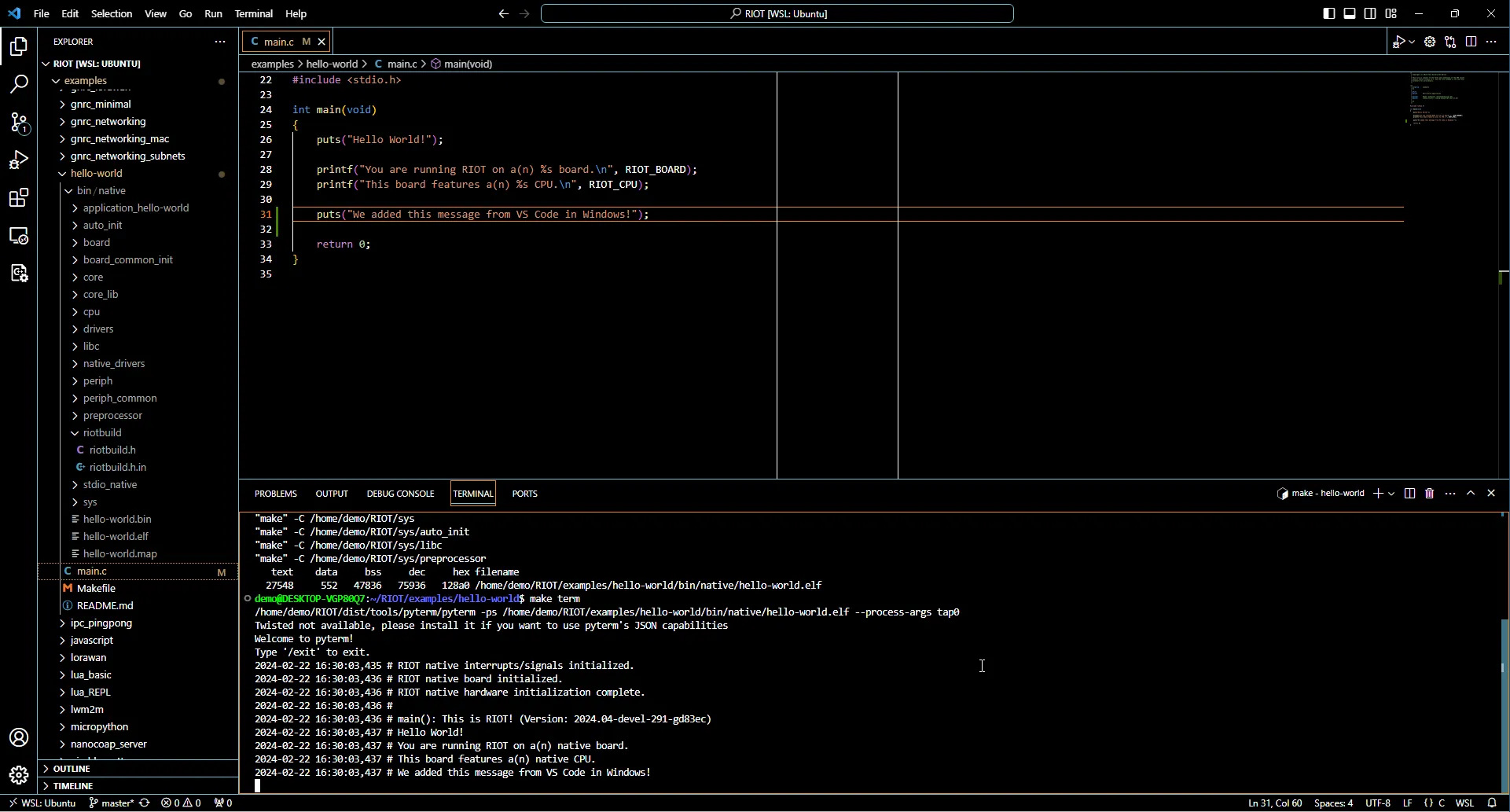
Congratulations! You just compiled your first RIOT application. To run RIOT on real hardware, proceed with the next to sections.